
Pixel Asset Workshop

Choose frames in SpriteFrame

SpriteFrame is included in the Pixel Asset Workshop repository. It crops and keys each unit, lets you review the animation frame by frame, and exports PNGs, atlases and GIFs.

Download and install SpriteFrame

The project ZIP includes SpriteFrame, the sample MP4 and its crop layout. You can download it without a GitHub account.

  1. Install Python 3.11 or newer, FFmpeg and ffprobe on macOS or Linux. With Homebrew, run brew install ffmpeg. On Ubuntu or Debian, run sudo apt install python3 python3-venv ffmpeg and check that python3 --version reports 3.11 or newer.
  2. Unzip the download and open a terminal in the extracted pixel-asset-workshop-main folder. Run:
    sh workbench/setup.sh
    sh workbench/start.sh
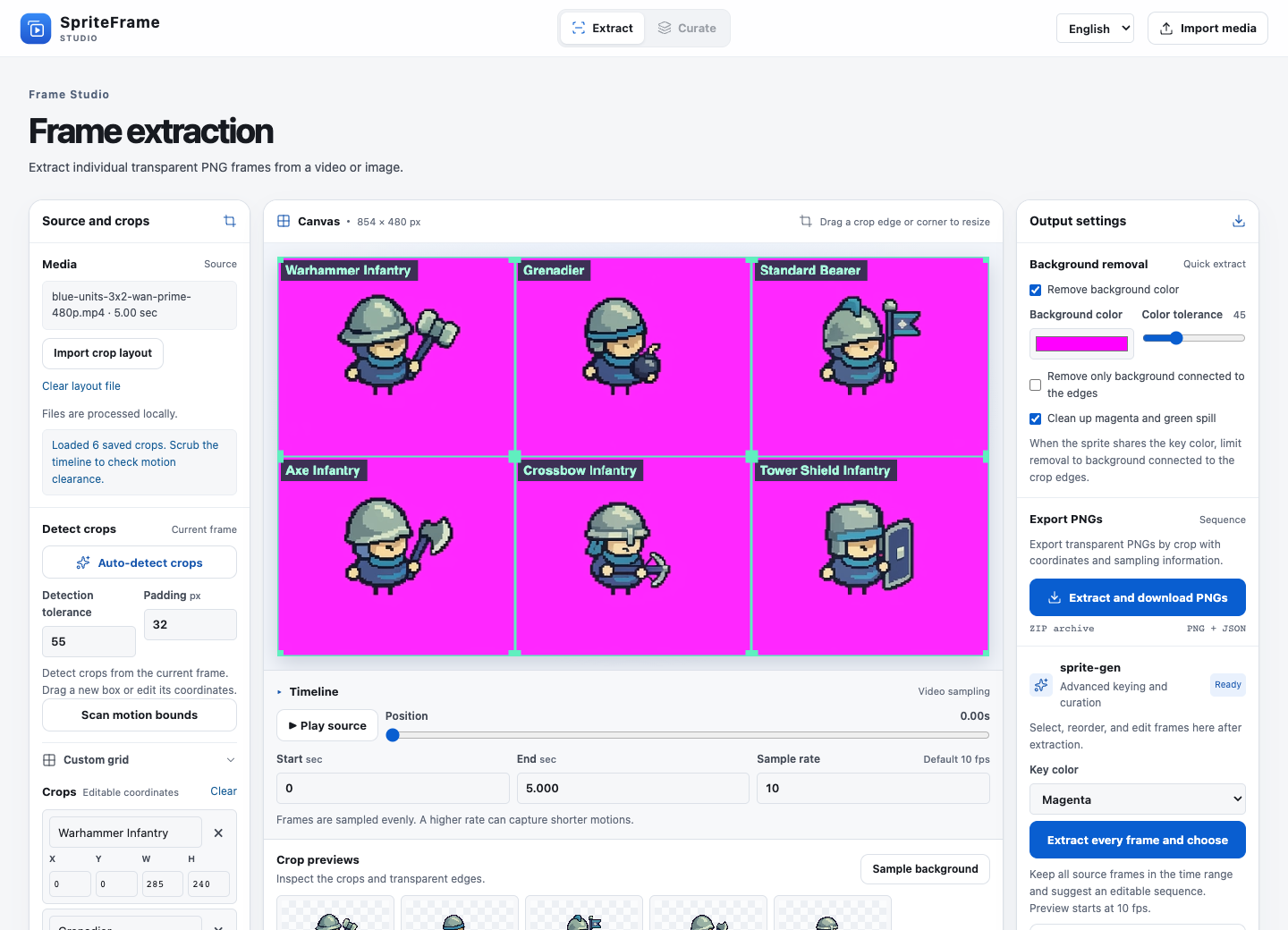
  3. Open http://127.0.0.1:8766/ after the server starts. To try the sample, choose Import crop layout, open the matching MP4, set the key color to Magenta, and click Extract every frame and choose. Find the sample MP4 and layout →
SpriteFrame extraction workspace with six named crops over the actual Wan video
SpriteFrame with the actual 854 × 480 Wan clip and its imported 3 × 2 layout.

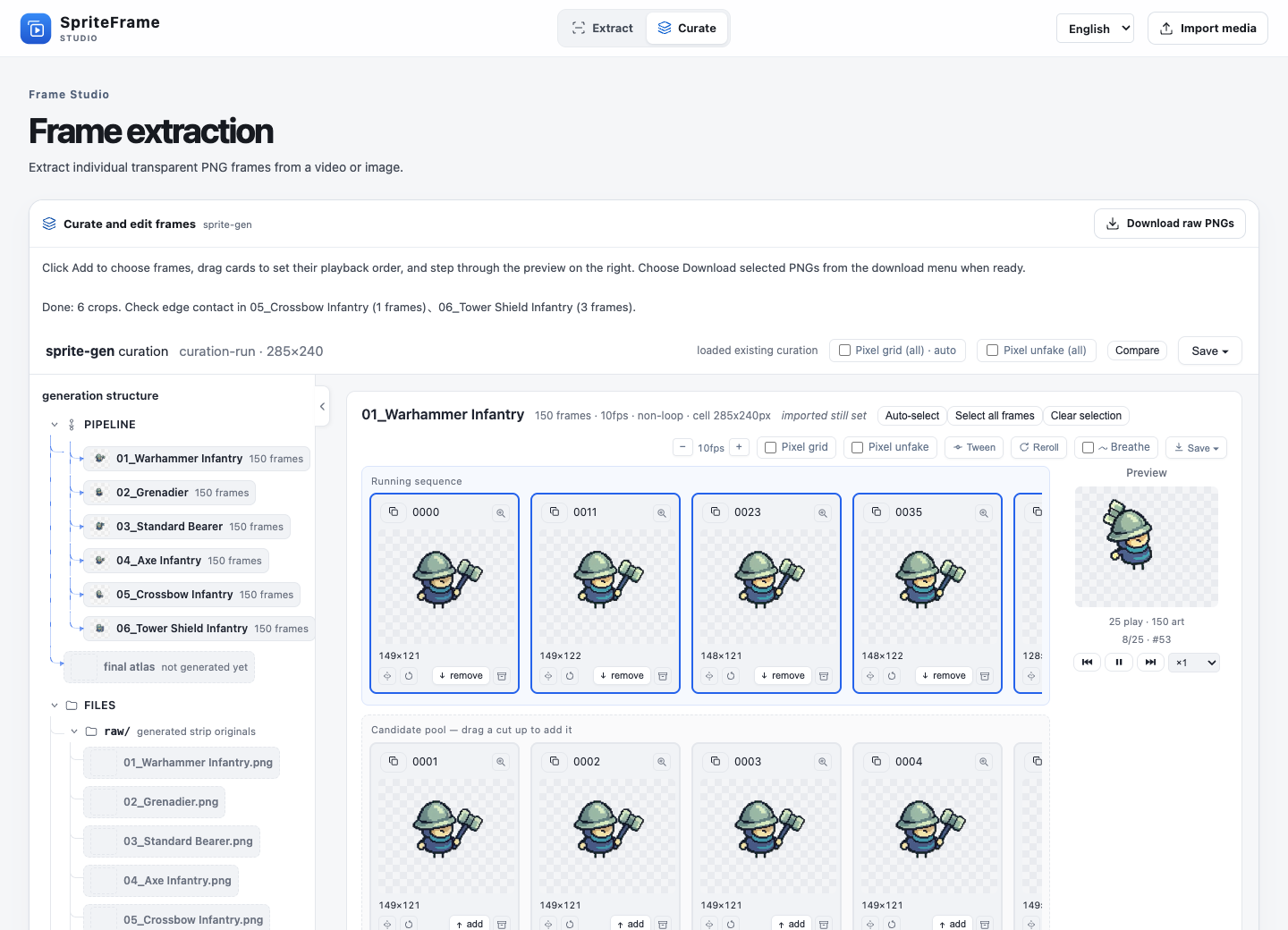
Review the selection

SpriteFrame frame selection editor with source frames and playback preview
The bundled workbench keeps 150 decoded frames per unit and suggests a sequence to review.

Preview the atlas and GIFs

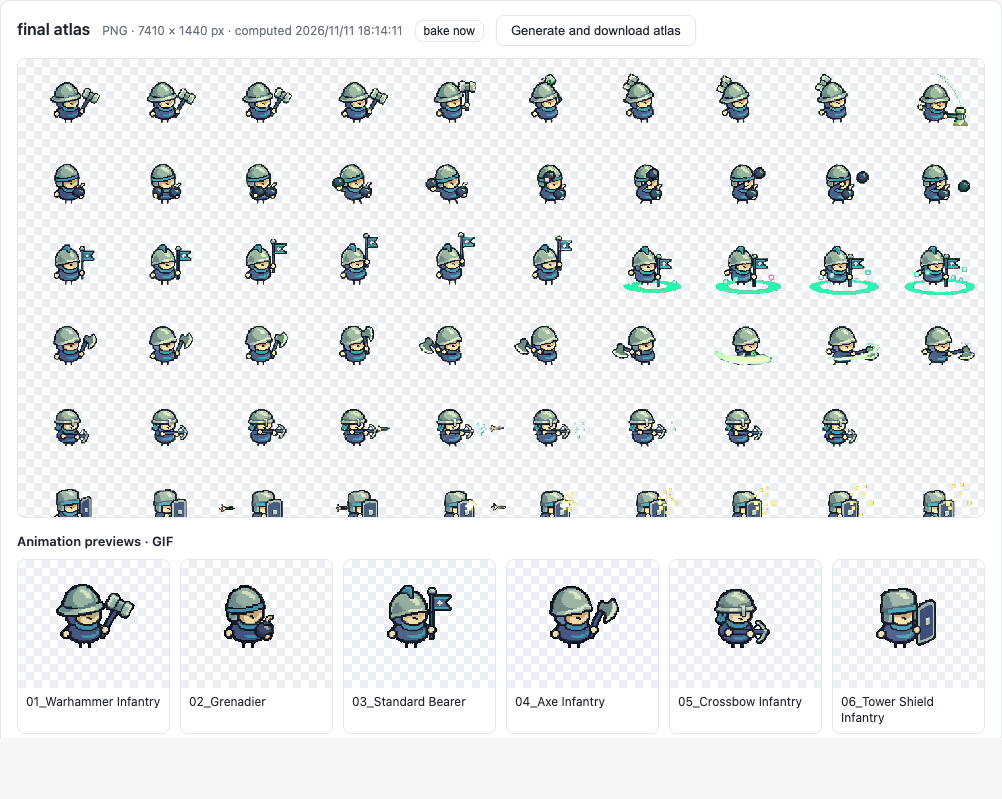
SpriteFrame final atlas with a row of poses and a GIF preview for each of the six units
Generate a transparent atlas and preview the six selected sequences as GIFs before exporting.

Exported sprite sheets and GIFs

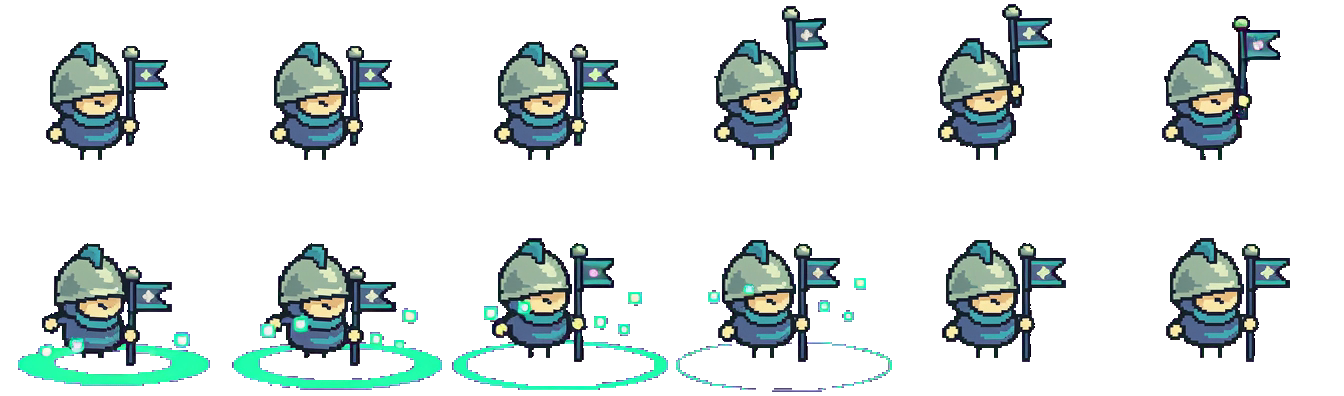
Each pair uses the same 12 frames from the cleaned PNG sequence. Read the PNG left to right, then top to bottom. The GIF shows the selected poses at 200 ms per frame.

Use, modify or share these original sheets and GIFs in personal or commercial projects. Attribution is optional. CC0 1.0 asset terms ↗